Showing posts with label SWT. Show all posts

Saturday, December 3, 2011

PunchClock 0.2.5 Released, JFace lessons

I finally got to a point where I thought enough of the nagging items with PunchClock were resolved that I would take the time to publish a new release. I am pretty proud of this release. There are no major new features but a lot of work went into making the code better, improving the infrastructure to make it a more rounded, solid product. For details on what was done, see  the PunchClock 0.2.5 release announcement.

 I've been personally using PunchClock versions daily to keep track of time at my work, I think I've pretty much gotten it to a stable, usable point. I don't see much new work going into it, unless I have some inspiration.


A couple of interesting lessons learned I think I'll share.

Utilizing JFace's built in ImageRegistry
I needed to add a custom error message to my Edit Session dialog. I did this using two labels. One that displays an icon (info, warning, error) and the other will have the message text. I tried using Label.setImage() for the label with the message text, however, the image "takes over" and no text is displayed, so I needed to keep them separate.
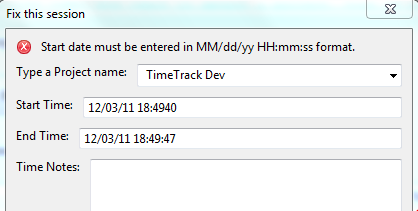
I know JFace must have the icons somewhere as they are used by the WizardPage status messages. It turns out they are available in the org.eclipse.jface.resource.JFaceResources.getImage() utility method. The icon images are available as constants of the org.eclipse.jface.dialogs.Dialog class.

Here is the setMessage() method from my custom EditSessionDialog class, it is called by a Listener that is attached to all the widgets in the form, listening on any change.

    /**
     * Updates the status message of this dialog with errors or other
     * information to display to the user.
     *
     * @param messageText
     *            - text to display
     * @param status
     *            - one of IMessageProvider constants
     */
    public void setMessage(String messageText, int status) {
        _logger.fine(messageText + ", status: " + status);
        Image messageImage = null;
        // based on status, display appropriate icon
        switch (status) {
        case IMessageProvider.INFORMATION:
            messageImage = JFaceResources.getImage(Dialog.DLG_IMG_MESSAGE_INFO);
            break;
        case IMessageProvider.WARNING:
            messageImage = JFaceResources
                    .getImage(Dialog.DLG_IMG_MESSAGE_WARNING);
            break;
        case IMessageProvider.ERROR:
            messageImage = JFaceResources
                    .getImage(Dialog.DLG_IMG_MESSAGE_ERROR);
            break;
        case IMessageProvider.NONE:
        default:
            messageImage = null;
            break;

        }
        // update the labels with new values
        _messageLabel.setText(messageText);
        _messageIcon.setImage(messageImage);
        _messageIcon.redraw();
        // resize widgets in dialog
        _messageIcon.pack(true);
        _messageLabel.pack(true);
    }


JFace ErrorDialog
As I transitioned all of the code in PunchClock away from writing out direct to the console, and instead used java.util.logging API, it became apparent that the way that exceptions were being handled was inconsistent, and in fact exceptions were getting thrown that were never handled. It seems that if there is no ExceptionHandler defined for the Window class, the exceptions don't get shown in the UI, though the program continues to run, leading to some unexpected results, such as clicking on a button and nothing seeming to happen.

So first step was to create a class that implements IExceptionHandler and then set it as the ExceptionHandler for my main window, using Window.setExceptionHandler(). This lets me catch all Throwables thrown and not caught in the PunchClock code.

Then I did find that JFace conveniently has a prebuilt dialog for displaying errors to the UI, which before I was able to do in one off cases using a custom built SWT dialog function. The example I took my queue from was here http://www.java2s.com/Code/Java/SWT-JFace-Eclipse/JFacesErrorDialogclass.htm

My example handleException method in my ExceptionHandler

/* (non-Javadoc)
     * @see org.eclipse.jface.window.Window.IExceptionHandler#handleException(java.lang.Throwable)
     */
    @Override
    public void handleException(Throwable arg0) {
        _logger.log(Level.SEVERE, "Uncaught exception from UI", arg0);
        // Create the required Status object
        Status status = new Status(IStatus.ERROR, "PunchClock", 0,
            "Unhandled Exception "+arg0.getMessage(), arg0);

        // Display the dialog
        ErrorDialog.openError(Display.getCurrent().getActiveShell(),
            "Error Occured", "Program Error. See PunchClock.log for more details.", status);
    }

It wasn't too clear what all these parameters do in terms of where they get used in the ErrorDialog. Here is an example of the error dialog produced by above code with a NullPointerException
The title of the dialog, and the first message line is from the openError() method, second and third parameters respectively, the fourth parameter, the Status object, controls the "Reason:" message, and if you include the actual Throwable in the status it gets displayed in the expandable Details box, although that is not required, you can just pass null.

Editor's note: stay tuned for updates to the punchclock wiki and FAQ pages as I round out documentation with all the updates from the latest releases.


Saturday, September 24, 2011

PunchClock 0.2.3 Released

After putting PunchClock on hold to work on C coding this past summer. I've resumed work and completed a few features for PunchClock. Mainly these greatly help me in my own job, they probably could be useful for others.

Download PunchClock 0.2.3

Tour of whats new in PunchClock 0.2.3
  •  Added new feature: Stats widget in UI 
    • Tracks how long you are spending on the current task.
    • Keeps a running total of all tasks for that calendar day: "have I billed 8 hours to my client today?"
  • Brand new Export feature
    • File > Export launches a new wizard to export a file to Excel
    • Selectable Date Range
    • Excel 97-2003 format (.xls), compatible with OpenOffice, GoogleDocs
    • Exported Excel provides automatic summations of tasks for each day by project. Color coded by day for easier review.
    • Uses Apache POI library.
  • Fixed a bug on exit that wouldn't properly save the end time for a current session.
  • Behind the scenes all the UI has now been reimplemented using JFace
  • Fixed a few other dings and scratches.

I skipped a formal release of 0.2.2 as there wasn't much new for the end user, that release mainly dealt with bug fixing and refactoring for JFace.

I am getting close to finishing what I wanted to achieve now with PunchClock, It will now be something that will be an accelerator at my own job and I will try to share it with my team. There are a few things in the UI that I would like to tighten up. For example the layout changes a little too much when the main window is resized. I could add a few more options to the Export wizard. I currently don't have support .xlsx format output. Maybe when I get around to these last few areas I would be comfortable with a version 1.0 release.

Please let me know if you have any feedback or comments.

Sunday, June 19, 2011

Converting SWT to JFace

It has been a slow couple of weeks for my coding. I've had a lot of activities going on which have kept me away. Today I focused on making a major architectural change to PunchClock by reimplementing the view layer of PunchClock to completely use the JFace pattern instead of the pure SWT that was mostly there.

To do this I had to rewrite all of my custom SWT dialog shell code using various subclasses of the JFace Dialog class. All of my menu bar was replaced using a set of JFace MenuManagers with related Actions. Finally the main application Shell was implemented through a new class that extends ApplicationWindow and acts as the "central glue" for the new JFace implementation. As always the tutorials by Adrian Emmenis, "Using the Eclipse GUI outside the Eclipse Workbench", were my main guide in this process although was also able to use the SWT/JFace javadocs available in the Eclipse Platform API Specification reference site.

The purported benefits of using JFace is that it "is a UI toolkit that provides helper classes for developing UI features that can be tedious to implement". So one would hope that this could be quantified in terms of fewer lines of code, easier readability and/or maintainability. As PunchClock 0.2.1 is a fairly stable, simple application, using a couple of JFace dialogs, but not depending on it too much, I was hoping to see evidence of a benefit by switching over. To be honest, the experience today felt like rearranging deck chairs on a cruise ship. Generally what I needed to do was move methods around from a class that previously managed most of the SWT UI interactions and updates and put these chunks of code into other more object oriented classes, such as Dialogs, ApplicationWindow or Actions. A lot of my EventListeners, for menu items for example were easily converted to JFace Actions with a couple of constructor changes and converting the implementation of SelectionListener.widgetSelected() method to override the Action.run() method. For example:
Before old SWT code with Listener for the "Open" menu item

/**
* @param shell
*/
public OpenAction(Shell shell, TimeTrackController controller, DialogSettings settings) {
_shell = shell;
_controller = controller;
_settings = settings;
}

/*
* (non-Javadoc)
*
* @see org.eclipse.swt.events.SelectionAdapter#widgetSelected
* (org.eclipse.swt.events.SelectionEvent)
*/
public void widgetSelected(SelectionEvent e) {

// create new dialog where user enters the project name
final Shell dialog = new Shell(_shell, SWT.DIALOG_TRIM
| SWT.APPLICATION_MODAL);
dialog.setText("Open Project");
FormLayout formLayout = new FormLayout();
formLayout.marginWidth = 10;
formLayout.marginHeight = 10;
formLayout.spacing = 10;
dialog.setLayout(formLayout);
// position near parent window location
dialog.setLocation(_shell.getLocation().x + 10,
_shell.getLocation().y + 10);
// text displayed in dialog
Label openProjectLabel = new Label(dialog, SWT.NONE);
openProjectLabel.setText("Type a Project name:");
FormData data = new FormData();
openProjectLabel.setLayoutData(data);

//for combo box
String[] options = new String[]{};
try{
List availableProjects = _controller.getProjects();
options = new String[availableProjects.size()];
availableProjects.toArray(options);
}catch(IOException ioe){
ioe.printStackTrace();
}


//creates cancel button
Button cancel = new Button(dialog, SWT.PUSH);
cancel.setText("Cancel");
data = new FormData();
data.width = 60;
data.right = new FormAttachment(100, 0);
data.bottom = new FormAttachment(100, 0);
cancel.setLayoutData(data);
cancel.addSelectionListener(new SelectionAdapter() {
public void widgetSelected(SelectionEvent e) {
System.out.println("User cancelled dialog");
dialog.close();
}
});


//creates text box
//final Text textBox = new Text(dialog, SWT.BORDER);
data = new FormData();
data.width = 200;
data.left = new FormAttachment(openProjectLabel, 0, SWT.DEFAULT);
data.right = new FormAttachment(100, 0);
data.top = new FormAttachment(openProjectLabel, 0, SWT.CENTER);
data.bottom = new FormAttachment(cancel, 0, SWT.DEFAULT);
//textBox.setLayoutData(data);
//textBox.forceFocus();

final Combo combo = new Combo(dialog, SWT.NONE);
combo.setItems (options);
//set the default text to the first option, can be overridden by user
if(options.length > 0){
String selectedOption = Configuration.getSetting(_settings, Configuration.LAST_PROJECT, options[0]);
combo.setText(selectedOption);
}
combo.setLayoutData(data);
combo.forceFocus();


//creates ok button
Button ok = new Button(dialog, SWT.PUSH);
ok.setText("OK");
data = new FormData();
data.width = 60;
data.right = new FormAttachment(cancel, 0, SWT.DEFAULT);
data.bottom = new FormAttachment(100, 0);
ok.setLayoutData(data);
ok.addSelectionListener(
// nested inner class
new SelectionAdapter() {

/*
* (non-Javadoc)
*
* @see org.eclipse.swt.events.SelectionAdapter
* #widgetSelected (org.eclipse.swt.events.SelectionEvent)
*/
public void widgetSelected(SelectionEvent e) {
String selectedProject = combo.getText();
//set the project in the controller
_controller.setProject(selectedProject);
//updated the last project setting with chosen value
_settings.put(Configuration.LAST_PROJECT, selectedProject);
// close the message dialog
dialog.close();

}
});


dialog.setDefaultButton(ok);
dialog.pack();
dialog.open();
}


Now becomes just:

/**
* @param shell
*/
public OpenAction(PunchClockWindow window) {
_window = window;
setText("&Open Project...\tCTRL+O");
ImageRegistry reg = Resources.getImageRegistry();
setImageDescriptor(reg.getDescriptor(Resources.IMAGES_FOLDER_OPEN_PNG));
}


/* (non-Javadoc)
* @see org.eclipse.jface.action.Action#run()
*/
public void run() {

// create new JFace dialog where user enters the project name
OpenProjectDialog projDialog = new OpenProjectDialog(_window);
projDialog.open();
}


Now, a lot of the code above is actually still there, just contained in the new object OpenProjectDialog which extends JFace's Dialog class. The one big benefit I notice with Dialogs is that you get the OK and Cancel buttons "for free". So instead of needing to build the popup window from scratch as shown above, I just overrode and implemented the createDialogArea() and okPressed() methods from Dialog with my custom functions. That completely removes maintaining the Cancel button code from my responsibility for example.

Whether the conversion to JFace has objectively produced less code for the same exact results, I utilized a free code line counter, CLOC, to check how much improvements there were at all.


Before (v0.2.1 code pulled from SVN)
http://cloc.sourceforge.net v 1.53  T=0.5 s (64.0 files/s, 10350.0 lines/s)
-------------------------------------------------------------------------------
Language                     files          blank        comment           code
-------------------------------------------------------------------------------
Java                            32            725           1680           2770
-------------------------------------------------------------------------------
SUM:                            32            725           1680           2770
-------------------------------------------------------------------------------
After JFace conversion of view layer 
http://cloc.sourceforge.net v 1.53  T=0.5 s (66.0 files/s, 9538.0 lines/s)
-------------------------------------------------------------------------------
Language                     files          blank        comment           code
-------------------------------------------------------------------------------
Java                            33            705           1510           2554
-------------------------------------------------------------------------------
SUM:                            33            705           1510           2554
-------------------------------------------------------------------------------
There was an 8% shrinking of the code. Not too bad, I'll take it.

JFace ApplicationWindow's mysterious separator line
One quirk that I did come across after the conversion to pure JFace implemenation of the main window, was that it seems the default behavior for ApplicationWindow is to create a separator line at the top of the window's "contents" panel. This is in case you have a menu. This wasn't there before the port, so I was pretty confused. I began coloring all the widgets in my UI to try to understand what was creating this line but had no luck, because it wasn't in my code after all. See the strange extra line on the left.
JFace application window adds this extra line, shown on the left.


In my ApplicationWindow class, it turns out you need to override the ApplicationWindow#showTopSeperator() method and make sure it returns false if you don't need it, and this depends on which OS you have e.g. for Windows 7 and Mac OSX the menu bar is separate from the application panel anyways, no separator is needed. It may mean that for some OSs like Win XP for example, I might need to make the code smarter to conditionally show the separator or not.

Saturday, June 4, 2011

Punch Clock 0.2.1 and clickable edit button for SWT tables

After the release of Punch Clock 0.2.0 I observed a few issues that needed to be solved. I've just posted a new version, Punch Clock 0.2.1 which has these minor fixes and a new dialog to view the "audit" data in the UI.

One of the new features I added since 0.2.0 which I wanted to write about is the "Fix Session" button I have added to each row of the main table of data in PunchClock. This lets you go back after the fact and modify the times or other details for a record that has been saved. This was a true life-saver for me in practice as you often forget to start the timer at the right time, or want to put clarifying comments in later, etc. I implemented this with a click-able SWT button on every row with a wrench style icon.
Clicking on that button brings up a simple form in a dialog for editing the data in that row. Since I couldn't find an example that was exactly like this, I came up with an approach, still not sure if this is the most efficient way to do it. Here is how this was accomplished.

Using TableEditor to add the Buttons
I started from Snippet126 from the Eclipse SWT snippets site: "Table example snippet: place arbitrary controls in a table".

Using a class called org.eclipse.swt.custom.TableEditor which you construct with your Table, you specify a new control and place it against a particular TableItem in that Table, and even specify which column that control should be over. One way to picture this is that the TableEditor as floating above the Table as an invisible layer which you can put controls on that overlap your Table.

For example in my case, where table is an instance of org.eclipse.swt.widgets.Table


//get all the current items (rows) from your SWT table
TableItem [] items = table.getItems ();
for (int i=0; i<items.length; i++) {

//create the editor
TableEditor editor = new TableEditor(table);

//get the row
TableItem item = items[i];
//create my button
Button button = new Button (table, SWT.PUSH);
//my code to set the button icon image from an JFace ImageRegistry
button.setImage(Resources.getImageRegistry().get(Resources.IMAGES_EDIT_PNG));
button.setSize(16, 16);
button.setToolTipText("Fix this session");
button.pack();

//not sure if necessary, prevent the editor from being smaller than button
editor.minimumWidth = button.getSize ().x;
editor.horizontalAlignment = SWT.RIGHT;
//set the button to float over column 5 for this item
editor.setEditor (button, item, 5);
}


And that is it for the set up. Note regarding the JFace ImageRegistry, I have begun to use an excellent tutorial/article called Using the Eclipse GUI outside the Eclipse Workbench which has three parts. Part 2: Using the JFace image registry, describes the approach to creating an org.eclipse.jface.resource.ImageRegistry that is then referred to whenever you need to display the same image repeatedly in the UI, as I do in the case for the little wrench icon.

Handling Button Clicks
While the above code drops the buttons on the tables, I need to then hook them up to display the edit dialog. This is done through adding a Selection Listener to the button being added to each row.

Again, I am not sure if this is the greatest way to implement this code, but I created a class called EditButtonListener which implemented the org.eclipse.swt.widgets.Listener interface, specifically calling my new dialog from the handleEvent() method. Something like this (with my form logic simplified to pseudo code).


public class EditButtonListener implements Listener {

private TableItem _tableItem;

/**
* @param tableItem - dependency injection, keeps track of the row
*/
public EditButtonListener(TableItem tableItem) {
_tableItem = tableItem;
}

/* (non-Javadoc)
* @see org.eclipse.swt.widgets.Listener#handleEvent(org.eclipse.swt.widgets.Event)
*/
@Override
public void handleEvent(Event event) {
//get the parent shell for my table, needed to launch my new SWT dialog
Shell lShell = _tableItem.getParent().getShell();
//in my table the first column is a unique id
String sessionIdString = _tableItem.getText(0);
System.out.println("Button click for session id: "+sessionIdString);

final TimeSession selectedSession;
try{
//retrieve the selected time session from the back end
//...
}catch(Exception e){
throw new IllegalStateException(e);
}

// create new dialog where user enters the project name
final Shell dialog = new Shell(lShell, SWT.DIALOG_TRIM
| SWT.APPLICATION_MODAL);
dialog.setText("Fix this session");
FormLayout formLayout = new FormLayout();
formLayout.marginWidth = 10;
formLayout.marginHeight = 10;
formLayout.spacing = 10;
dialog.setLayout(formLayout);
// position near parent window location
dialog.setLocation(lShell.getLocation().x + 10,
lShell.getLocation().y + 10);
dialog.setSize(400, 400);
// text displayed in dialog i.e. field labels
//...

// create combo box drop down selection
//final Combo combo = new Combo(dialog, SWT.NONE);
//combo.setItems (options);
//set current value to selected session's value
//...
// text displayed in dialog i.e. field labels
//...
//next text box field
//final Text startTimeBox = new Text(dialog, SWT.SINGLE | SWTSWT.BORDER );
//...
//etc...

//create cancel button
//Button cancel = new Button(dialog, SWT.PUSH);
//cancel.setText("Cancel");
//layout stuff...
//add listener for when cancel is pressed:
//cancel.addSelectionListener(new SelectionAdapter() {
// public void widgetSelected(SelectionEvent e) {
// System.out.println("User cancelled dialog");
// dialog.close();
// }
//});

//creates ok button
//Button ok = new Button(dialog, SWT.PUSH);
//ok.setText("OK");
//layout stuff...
//add listener when OK button pressed
//ok.addSelectionListener(
// nested anonymous inner class for listener, could be separate class too
//new SelectionAdapter() {

/*
* (non-Javadoc)
*
* @see org.eclipse.swt.events.SelectionAdapter
* #widgetSelected (org.eclipse.swt.events.SelectionEvent)
*/
//public void widgetSelected(SelectionEvent e) {

//when OK is pressed save the current changes to the backend
//...

// close the message dialog
//dialog.close();

//}

//});

//finish set up of dialog and call open()
//...
//dialog.setDefaultButton(ok);
//dialog.pack();
//dialog.open();
}

}


To link the EditButtonListener back to the button I created above you would modify the button creation above slightly to include adding the Listener:

button.addListener(SWT.Selection, new EditButtonListener(item));

Now when clicked the form pops up


Improvements
One way that I would like to try to improve on this design is to be able to reuse the same EditButtonListener, so instead of creating a new listener instance for each TableEditor button, I would reuse the same instance and it would determine which button was pressed from the event.item passed in to handleEvent(). I also want to remove all the dialog code from the EditButtonListener and implement that using a JFace dialog in its own class.

Sunday, April 10, 2011

Punch Clock has gone live

I have wrapped up development of a beta version of my side-project "Punch Clock". I've created a launch page on Google Sites, and linked from the side bar.

https://sites.google.com/site/punchclockswt/

The released version is basically a public beta, free for anyone to download. Right now I support Windows and Linux.

The feature set is rudimentary but I am adding features as I have time. It has been a good project to learn the ins and outs of SWT for a basic app. I would like to explore refactoring more the UI to use more of the JFace patterns on top of SWT, I was just beginning to use this with the About dialog and the persistent settings modules. From the beginning this was a learning project, where I picked up Apache Derby, SWT, and created a build process in ANT, launched an entire release site with actual documentation, specified a license for the work etc...

More to follow I am sure.

Sunday, April 3, 2011

Collapsible SWT Text Area Snippet

A little sample code showing how you can have a Java SWT button that can collapse other Controls like a toggle switch. This also will show how to resize the container after "collapsing" your control.

I went this route after not finding the SWT ExpandBar widget suiting this purpose.

Screenshots from Windows 7

Source Code

/*
*
*/
package swt.snippet;

import org.eclipse.swt.SWT;
import org.eclipse.swt.events.SelectionAdapter;
import org.eclipse.swt.events.SelectionEvent;
import org.eclipse.swt.graphics.FontMetrics;
import org.eclipse.swt.graphics.GC;
import org.eclipse.swt.graphics.Image;
import org.eclipse.swt.layout.GridData;
import org.eclipse.swt.layout.GridLayout;
import org.eclipse.swt.widgets.Button;
import org.eclipse.swt.widgets.Display;
import org.eclipse.swt.widgets.Event;
import org.eclipse.swt.widgets.Group;
import org.eclipse.swt.widgets.Label;
import org.eclipse.swt.widgets.Listener;
import org.eclipse.swt.widgets.Shell;
import org.eclipse.swt.widgets.Text;

import com.brianl.timetrack.controller.TimeSession;
import com.brianl.timetrack.view.CollapseButtonListener;

/**
* Simple SWT Shell that contains a Group with some controls. An arrow button is
* used to toggle the Text area widget as collapsed or not.
*
* @author ammianus http://librixxxi.blogspot.com/
*
*/
public class CollapsibleTextBox {

private static final int NUMBER_GRID_COLUMNS = 1;

private Display _display;

private Shell _shell;

CollapsibleTextBox() {
_display = new Display();
_shell = new Shell(_display);
_shell.setSize(300, 250);
// Collapsible Group
_shell.setText("Collapsible Group Example");
// format shell as single column grid layout
_shell.setLayout(new GridLayout(NUMBER_GRID_COLUMNS, true));

// create the group
Group collapseGroup = new Group(_shell, SWT.NONE);
GridData groupGrid = new GridData(SWT.TOP, SWT.LEFT, false, false);
groupGrid.horizontalSpan = 1;
collapseGroup.setLayoutData(groupGrid);
collapseGroup.setText("Control Group");

// create a Label and Button inside the Group
GridData labelGridData = new GridData(GridData.VERTICAL_ALIGN_END);
labelGridData.horizontalSpan = 1;
String labelText = "Pressing button toggles Text. ";
final Label instructionLabel = new Label(collapseGroup, SWT.NONE);
instructionLabel.setText(labelText);
instructionLabel.setLayoutData(labelGridData);
instructionLabel.pack();

final Button collapseButton = new Button(collapseGroup, SWT.ARROW
| SWT.UP);

// multi-row Text area with word-wrap
final Text textArea = new Text(collapseGroup, SWT.MULTI | SWT.LEAD
| SWT.BORDER | SWT.WRAP);

// set height and width of Text area
GC gc = new GC(textArea);
FontMetrics fm = gc.getFontMetrics();
final int textBoxWidth = 50 * fm.getAverageCharWidth();
final int textBoxHeight = 4 * fm.getHeight();
gc.dispose();
textArea.setSize(textArea.computeSize(textBoxWidth, textBoxHeight));
GridData textBoxGrid = new GridData(SWT.TOP, SWT.LEFT, false, false);
textBoxGrid.horizontalSpan = NUMBER_GRID_COLUMNS;
textBoxGrid.heightHint = textBoxHeight;
textBoxGrid.widthHint = textBoxWidth;
textArea.setLayoutData(textBoxGrid);

// set the layout for the items contained by the Group as a two column
// grid
collapseGroup.setLayout(new GridLayout(2, false));
collapseGroup.layout(true);

// create a listener that waits for button press
collapseButton.addListener(SWT.Selection, new CollapseButtonListener(
textArea, textBoxWidth, textBoxHeight, collapseGroup,
textBoxGrid));

// open the shell and run UI loop
_shell.pack();
_shell.open();
while (!_shell.isDisposed()) {
if (!_display.readAndDispatch())
_display.sleep();
}
_display.dispose();
}

/**
* Runs the demo
*
* @param args
*/
public static void main(String[] args) {
new CollapsibleTextBox();
}

/**
* inner class handles button click events for arrow button
*
*/
public class CollapseButtonListener implements Listener {

private Text _timeNotesBox;
private int _textBoxHeight;
private int _textBoxWidth;
private Group _container;
private GridData _textBoxGrid;

/**
* @param timeNotesBox
* @param textBoxHeight
* @param textBoxWidth
* @param container
* @param textBoxGrid
*/
public CollapseButtonListener(Text timeNotesBox, int textBoxWidth,
int textBoxHeight, Group container, GridData textBoxGrid) {
super();
// save references to the various controls to update
this._timeNotesBox = timeNotesBox;
this._textBoxHeight = textBoxHeight;
this._textBoxWidth = textBoxWidth;
this._container = container;
this._textBoxGrid = textBoxGrid;
}

/*
* (non-Javadoc)
*
* @see
* org.eclipse.swt.widgets.Listener#handleEvent(org.eclipse.swt.widgets
* .Event)
*/
@Override
public void handleEvent(Event event) {
// toggles the Text Area as visible or not.
// When Text Area is collapsed, resize the parent group
if (_timeNotesBox.getVisible()) {
// collapse the text area
_timeNotesBox.setSize(_timeNotesBox.computeSize(1, 1));
_textBoxGrid.heightHint = 1;
_textBoxGrid.widthHint = 1;
_timeNotesBox.setLayoutData(_textBoxGrid);
_timeNotesBox.setVisible(false);
_timeNotesBox.pack(true);
System.out.println("Hiding textbox");
} else {
// expand text area back to original sizing
_timeNotesBox.setSize(_timeNotesBox.computeSize(_textBoxWidth,
_textBoxHeight));
_textBoxGrid.heightHint = _textBoxHeight;
_textBoxGrid.widthHint = _textBoxWidth;
_timeNotesBox.setLayoutData(_textBoxGrid);
_timeNotesBox.setVisible(true);
_timeNotesBox.pack(true);
System.out.println("Showing textbox");
}

// in this case the container is the Group
_container.pack(true);

// resize the parent shell too
_container.getParent().pack(true);
}

}
}


Built with:
swt-3.6.1-win32-win32-x86
Java 1.6.0_17
Eclipse 3.4.1

Built on the model of the snippets from java2s and the SWT snippets site.

I came up with this approach as I am trying to have an optional text box in my "Time Track" program. I really didn't see any other way to have this kind of dynamic visual behavior that is pretty common on websites these days. The only prebuilt widget that seemed similar was the ExpandBar, but what that did was create a large pane with expandable widgets within it. These all had a very non-native look and feel and was bit complex to set up when I had a single text box to expand/collapse.

Sunday, February 6, 2011

Introducing the Time Track Project

The Time Track application is a small side-project I have been developing since late November 2010. It is a simple application that lets a user keep track of time spent on work, projects, tasks etc.


Time Track main window, Windows Vista x64

The main requirements for the Time Track application were

  • Be a software version of a time punch clock, for any purpose

  • Keep track of time in a persistant format that can be saved

  • Cross-platform support (at least Windows, Mac OS X)

  • Needs a GUI

  • Lightweight, simple to use and set up

I developed this in Java as a standalone desktop program with a GUI using all OpenSource components. I am nearly complete with an initial version that meets all this functionality and I intend to release it as a free-ware app for now, maybe it can be made released as open source by itself in the future.


Implementation


I had really two paths I could have taken with this, one would be to build a dynamic webapp with a RDBMS backend. The second approach was to develop a standalone self-contained application that could be somewhat portable itself. I was hesitant to take on a project that required any sort of server set up and hosting, I am just not set up to do that now, so although the webapp was pretty easily cross-platform being browser based, I didn't like the idea of the dependency on the remote server.


I went with the standalone app approach, in order to be cross-platform and easy for me to develop I went with Java as the source language. I didn't want the program looking like a Java Swing application so I opted for the SWT api which is the basis for the Eclipse IDE and platform, it tends to look more "solid" in my opinion as one of its main features is native look and feel for UI components on every OS. I think so far it is coming along nicely. You can see a side-by-side comparison of the interface in Windows Vista, and on Linux (Ubuntu 10.04, 64-bit)


I have probably spent around 5 weekends and the occasional hour on a weeknight in total since I started building this application. Probably overall time spent has been under 80 hours. It was enjoyable to more or less go through the full development life-cycle for a new project. I got to do design, open-source research, coding and integration, source-control, and complete build scripts in Ant. Even though I may never release a line of code from this, I am building like I could.

In terms of the OpenSource projects that I used a variety of different components in my stack.

For my build environment, I am using Java JDK 1.6.0_17, Eclipse Ganymede IDE, Junit 3 (for the few automated unit tests that were really helpful with Derby), SVN for source control and builds are done with ANT. Testing was done on Windows Vista SP2 x64 and Ubuntu Linux 64-bit GTK.


RoadMap
On my to do list I still have a number of items I'd like to close out before really wrapping up this release.
  • The main table needs to update when changes occur. Currently it is loaded at start up.
  • Need to think about an import data function.
  • Testing on a Mac
  • Implement a more solid connection pool mechanism
  • Release strategy. Post on this site? or create an OpenSource project page?